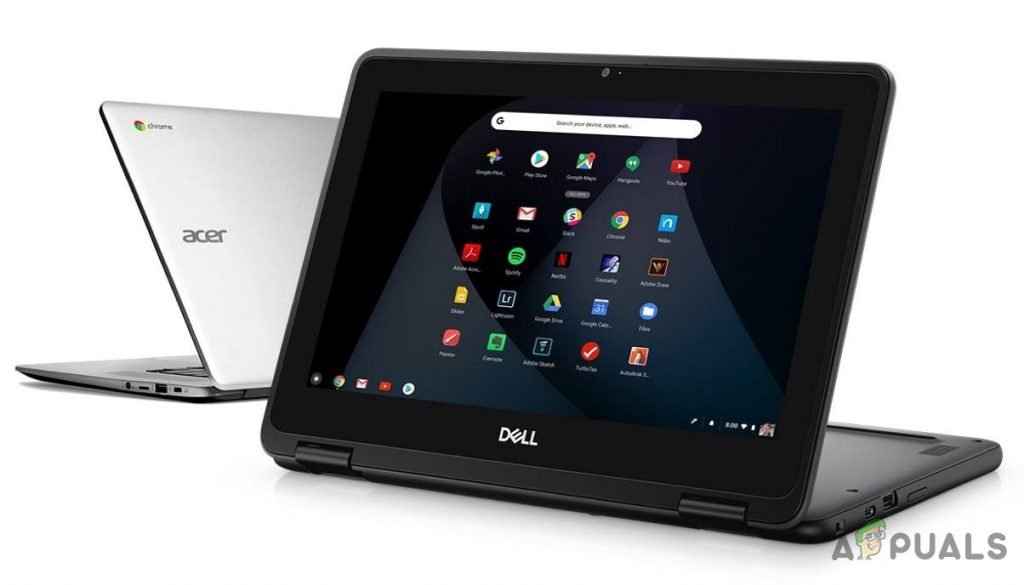
Your Chromebook is designed for simplicity, but beneath that streamlined surface lies a surprisingly robust array of Chromebook settings & software solutions that allow for deep customization and powerful troubleshooting. Whether you want to personalize your workspace, optimize performance, or fix a frustrating issue, mastering your Chromebook's control panel is your first step. Forget generic, one-size-fits-all tech; let's unlock the potential to make your device truly yours.
At a Glance: What You'll Discover
- Effortless Access: Learn the three quick ways to jump into your Chromebook's settings.
- Personalize Everything: From your wallpaper and fonts to keyboard shortcuts and display preferences.
- Boost Productivity: Configure connectivity, integrate your phone, and streamline your workflow.
- Enhance Security & Privacy: Understand how to protect your data and manage permissions.
- Troubleshoot Like a Pro: Diagnose and fix common issues, including when to use a browser reset or a full Powerwash.
- Software Savvy: Grasp the different app ecosystems (web, Android, Linux) available on Chrome OS.
Accessing Your Chromebook's Command Center
Think of your Chromebook's settings as its central nervous system—where every tweak and customization originates. Getting there is straightforward, with a few convenient routes:
- The Settings App: Click the Launcher icon (the circle in the bottom-left corner), then search for "settings" and click the gear icon.
- Chrome Browser Address Bar: For a quick jump, open your Chrome browser and type
chrome://settingsdirectly into the address bar, then hit Enter. - Chrome Browser Menu: Click the three-dot menu (kebab menu) in the top-right corner of your Chrome browser, then select "Settings."
Once you're in, you'll notice a clean, categorized layout. These categories are your guides to customizing virtually every aspect of your Chromebook experience.
Navigating the Core Settings Categories
The main settings are logically grouped, making it easy to find what you need. Let's explore the essentials.
Network & Connectivity: Staying Online
Your digital life hinges on a stable connection. This section lets you fine-tune how your Chromebook connects to the world.
- Wi-Fi: Turn Wi-Fi on or off, connect to new networks, or manage existing ones. You can "forget" networks to clear old credentials, prioritize preferred ones, or set them to auto-connect. For more technical users, you can dive into IP details, DNS settings, and proxy configurations. If you've been wondering why your Chromebook keeps disconnecting from Wi-Fi, this is the first place to investigate your connection settings.
- Mobile Data: If your Chromebook has LTE capabilities, manage your SIM and data usage here.
- Instant Tethering: A brilliant Google feature that allows one-click hotspot activation from your connected Android phone.
- VPN: Add secure VPN connections (OpenVPN/L2TP) for enhanced privacy, particularly useful on public networks.
Bluetooth & Connected Devices: Seamless Integration
These sections bridge the gap between your Chromebook and other gadgets, especially your smartphone.
- Bluetooth: Easily toggle Bluetooth on/off and pair new devices like headphones, keyboards, or mice. Remember, while Bluetooth facilitates features like Instant Tethering and Smart Unlock, it's not typically used for direct file transfer between your phone and Chromebook.
- Connected Devices: This is where Google's ecosystem truly shines.
- Smart Lock: Use your Android phone to instantly unlock your Chromebook when it's nearby. It's a fantastic time-saver, enhancing security without extra effort.
- Instant Tethering: As mentioned above, a quick way to use your phone's data connection.
- Messages: Send and receive Android text messages directly from your Chromebook, keeping your conversations centralized.
- Manage or remove any connected phones here to maintain control over your integrations.
Personalizing Your Experience: Accounts & Appearance
Make your Chromebook truly yours, from how it looks to how it handles your personal data.
- People:
- Profile: Change your profile picture to something that represents you—a photo, a saved image, your Google account picture, or even a GIF.
- Sync: Control which data Google syncs across your devices (extensions, apps, settings, etc.). This is critical; items not synced won't be restored after a factory reset. You can also configure sync encryption for added security.
- Screen lock and sign-in: Crucial for security. Enable "Show lock screen when waking from sleep," set up a PIN, or add/edit fingerprints if your device supports them. Accessing these settings will always require your login password.
- Manage other people (Owner only): If you're the primary user, you can enable/disable guest login, control whether user photos are shown on the sign-in screen (disabling this requires users to type their full email for better security), and restrict sign-in to specific users you authorize.
- Autofill: Streamline your online interactions.
- Passwords: Enable/disable "Offer to save passwords" and "Auto Sign-in." View, edit, or remove all your saved login credentials. The "Search passwords" field is incredibly handy for finding specific entries.
- Payment Methods: Control whether your credit card details are saved for autofill. While you can view saved cards, adding, editing, or removing them will redirect you to an online page for security reasons.
- Addresses and more: Manage your saved addresses for quicker online forms.
- Appearance: Give your Chromebook a visual facelift.
- Open the Wallpaper app to choose from a vast collection or upload your own.
- Browse the Chrome Web Store for custom browser themes.
- Browser Settings: Show/hide the home button and set its URL, or toggle the bookmarks bar (quick shortcut: CTRL+SHIFT+B).
- Font Customization: Adjust the default Font Size (from Very small to Very large) and even customize specific fonts used by your browser.
- Page Zoom: Set a default zoom level for all web pages, perfect if you prefer larger text without changing the entire system font.
Device Hardware: Tailoring Input & Output
This section puts you in control of how you interact with your Chromebook's physical components.
- Touchpad:
- Enable tap-to-click: Highly recommended for a more intuitive experience.
- Enable tap dragging: Double-tap and hold to drag items—useful for trackpad veterans.
- Adjust Touchpad speed to match your preference.
- Choose Scrolling direction (Traditional or Australian) based on what feels natural.
- Keyboard: Your primary input tool deserves customization.
- Key Remapping: Change the function of specific keys like Launcher, Ctrl, Alt, Escape, Backspace, or Assistant. For instance, many users remap the Launcher key to Caps Lock, though remapping the Launcher key isn't recommended if you frequently use Chrome OS shortcuts. For more efficiency, consider mastering Chromebook shortcuts to speed up your workflow.
- Function Keys: "Treat top-row keys as function keys" lets you use F1-F12 by holding the Launcher key, useful for specific applications.
- Auto-repeat: Enable/disable auto-repeat and fine-tune its delay and rate.
- Access Keyboard shortcuts or change Language and input settings directly from here.
- Stylus (if supported): If your Chromebook has a stylus, configure its behavior.
- "Show stylus menu on the shelf" for quick access to tools.
- Select your default note-taking app (Google Keep is the standard, but you can choose others).
- Manage "Lock screen notes" for quick scribbles without unlocking.
- Displays: Optimize your screen setup.
- Adjust Resolution using the "Displays Size" slider for larger elements or more screen real estate.
- Change Orientation (e.g., vertical mode) for different viewing needs.
- Enable and schedule Night Light to adjust the screen's color temperature, reducing eye strain in the evenings.
- Storage Management: Keep an eye on your available space.
- View detailed usage: total storage, downloads, offline files, browsing data, Android storage, and other users' data.
- Delete offline files or clear browsing data to free up space.
- Power: Control how your Chromebook behaves when idle or on different power sources.
- View battery percentage and remaining time.
- Configure "When idle" behavior (Sleep, Turn off display, Keep display on) with separate settings for battery and AC power.
- "Sleep when the lid is closed" is enabled by default and recommended for security and efficiency. Knowing these settings can go a long way in optimizing your Chromebook's battery life for those long workdays or travel.
Software & Services: Apps, Assistant & Linux
This category covers how your Chromebook interacts with various software platforms and services.
- Search and Assistant:
- Change the default Search engine for your address bar (Omnibox).
- Manage other search engines (add, make default, edit, remove).
- Manage Google Assistant settings for voice commands and smart features.
- Google Play Store: Your gateway to Android apps.
- "Manage Android Preferences" opens the full Android Settings panel for deeper configuration of your Android apps.
- "Remove Google Play Store" will uninstall the Play Store and all Android apps from your device.
- Linux (Beta): Offers the option to enable a full Linux environment, opening up a world of traditional desktop software for power users and developers.
- On Startup: Decide how Chrome OS greets you.
- "Open a New Tab Page" (default) for a fresh start.
- "Continue where you left off" to resume your previous session.
- "Open a specific page or set of pages" for a custom startup experience.
Diving Deeper: Advanced Settings for Power Users
Under the "Advanced" section, you'll find more granular controls that impact everything from privacy to printing.
Date and Time: Keeping Your Clock Accurate
- Set your timezone (automatically or manually).
- Enable/disable the 24-hour clock format.
Privacy and Security: Protecting Your Digital Life
This is a critical section for controlling your data and online safety.
- Basic Privacy Controls: Manage prediction services for searches and page loading (can send data to Google), web services for navigation/spelling errors, and Safe Browsing protection (default enabled, can send diagnostic data). You can also toggle "Do Not Track" requests, though websites are not obliged to honor them.
- Wi-Fi During Sleep: Decide if Wi-Fi should stay on when your Chromebook is asleep, affecting background updates and notifications.
- Content Settings (Site Permissions): This powerful sub-section allows you to manage individual site permissions (Ask, Allow, Block) for a wide range of features:
- Cookies: Default allowed, but you can block third-party cookies or clear them on exit.
- Location, Camera, Microphone: Control access for websites.
- Notifications, JavaScript, Pop-ups and redirects: Crucial for managing annoying website behavior.
- Ads: Block misleading or intrusive ads.
- Other permissions include Background sync, Sound, Automatic downloads, USB devices, and more. Understanding and configuring these permissions is a vital step to secure your Chromebook against unwanted tracking and malicious activity.
- Clear Browsing Data: This tool is your digital broom.
- Basic options: Clear Browsing history, Cookies and other site data, Cached images and files.
- Advanced options: Include Download History, Passwords and other sign-in data, Autofill form data, Site Settings, and Hosted app data. All can be cleared for a selectable time range (last hour, 24 hours, 7 days, 4 weeks, or all time).
Languages and Input: Multilingual & Efficient Typing
- Display language: Change the language Chrome OS uses.
- Translation offers: Decide if Chrome should offer to translate pages in foreign languages.
- Input methods: Manage keyboard layouts, show options on the shelf for quick switching, and enable drawing, speech, or emoji keyboards.
- Spell check: Configure spell check per language.
- Custom Spelling: Add or remove words from your personal dictionary.
Downloads: Where Your Files Go
- Change the default download folder.
- Enable "Ask where to save each file before downloading" for more control.
- Disconnect Google Drive integration for downloads if preferred.
- Add Network file shares (SMB) for accessing files on local network drives.
Printing: Connecting to Your Printer
- Add local Printers manually.
- Manage Google Cloud Print-supported printers (though Google Cloud Print has been deprecated, some legacy support or specific printer integrations might still be managed here depending on your device's age and manufacturer). For a deeper dive into common issues, check out our guide on troubleshooting common printer issues with your Chromebook.
Accessibility: Making Your Chromebook Work for You
- Enable "Always show accessibility options in the system menu" for quick access.
- "Manage accessibility features" opens a dedicated panel with a wealth of options, including screen readers, high contrast mode, automatic clicks, and more, designed to make your Chromebook usable for everyone.
Troubleshooting & Restoring: When Things Go Sideways
Sometimes, software glitches or persistent issues require more drastic measures than a simple setting change. Your Chromebook offers two powerful reset options.
Restore Settings to Their Original Defaults (Browser Reset)
This option specifically resets only the Chrome browser to its default state. It's a fantastic first step for resolving issues caused by unwanted extensions, hijacked homepages, or browser-specific misconfigurations.
What it restores:
- Default search engine.
- Homepage and tabs.
- New tab page.
- Content settings (like site permissions).
- Cookies and other site data.
- Installed extensions and themes (they are disabled, not deleted, so you can re-enable them later).
What it doesn't affect: - Bookmarks.
- Saved passwords.
Think of it as hitting the "reset" button on your browser without wiping your personal data or other parts of Chrome OS.
Powerwash (Factory Reset)
This is the nuclear option—a complete factory reset of your entire Chromebook. A Powerwash deletes all apps, files, and user accounts from the device, returning it to its out-of-the-box state.
Before you Powerwash, remember this crucial warning:
Back up any important local files, photos, or documents! Once initiated, there's no going back. Any data not synced to Google Drive or other cloud services will be permanently lost.
When to use it:
- Persistent, unresolvable performance issues.
- Selling or giving away your Chromebook.
- As a last resort for severe software problems.
Important Note: Powerwash cannot be performed on Chromebooks managed by a school or office, as these devices are controlled by an administrator.
Beyond Settings: Software Solutions for Everyday Use
While settings are critical, remember that your Chromebook is also a versatile platform for various software solutions.
- Web Apps: The core of Chrome OS, offering instant access to services like Google Docs, Microsoft 365, Slack, and countless other web-based tools directly through your browser. They're fast, always up-to-date, and require minimal local storage.
- Android Apps: The Google Play Store provides access to millions of Android applications, perfect for mobile-first experiences like social media, games, and many productivity apps. This expands your Chromebook's capabilities significantly, allowing you to run apps you might be familiar with from your smartphone or tablet.
- Linux Apps: For those who need more powerful desktop software, enabling Linux (Beta) opens up the world of Linux applications. This includes tools like GIMP for image editing, LibreOffice for productivity, or various coding environments, turning your Chromebook into a surprisingly capable development machine.
The combination of robust web experiences, a vast Android app library, and optional Linux support makes your Chromebook far more versatile than its simple exterior might suggest.
Your Customized Chromebook Awaits
Navigating your Chromebook's settings might seem daunting at first, but with this guide, you're now equipped to tackle everything from minor tweaks to major troubleshooting. The power of Chromebook settings & software solutions lies in their ability to transform a general-purpose device into a personalized powerhouse, perfectly tuned to your workflow and preferences. Don't just use your Chromebook; truly own it. Start exploring, customizing, and enjoying a computing experience that's uniquely yours.